10 Best Wacom Pen Tablet Of 2026
Wacom Pen Tablet — Reviews, Recommendations & Updated Buying Guide November 2026


Wacom Intuos Small
Why We Love It


Wacom Intuos Pro Medium
Why We Love It

Wacom Intuos Small Bluetooth Graphics Drawing Tablet
Why We Love It

Wacom One Small
Why We Love It

Wacom One Medium
Why We Love It

XP-Pen Deco 01 V3 Drawing Tablet
Why We Love It

Wacom Intuos Medium
Why We Love It
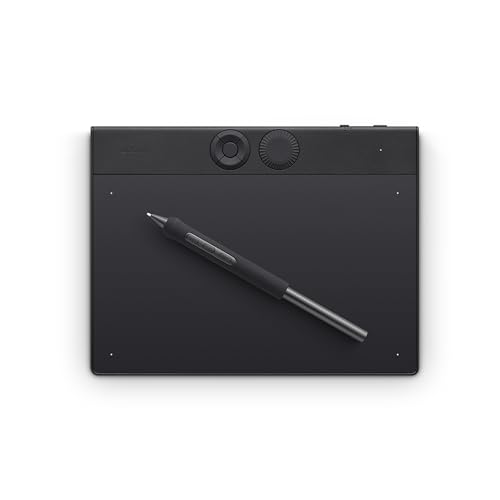
Wacom Intuos Pro Small
Why We Love It
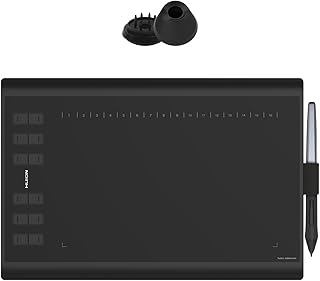
Drawing Tablet HUION Inspiroy H1060P Graphics Tablet
Why We Love It

XP-Pen StarG640 6x4 Inch Ultrathin Tablet Drawing Tablet
Why We Love It
Quick Pick
10 Best Wacom Pen Tablet Of 2026
Quick Pick
Wacom Intuos Small, Wired Graphic Drawing Tablet with Pen + Software | Battery-free pen, 4 ExpressKeys for shortcuts, works with Mac, Windows & Chromebook; Ideal for creators, students & teachers
Wacom Intuos Pro Medium, Bluetooth Graphic Drawing Tablet with ProPen 3
Wacom Intuos Small Bluetooth Graphics Drawing Tablet, Portable for Teachers, Students and Creators, 4 Customizable ExpressKeys, Compatible with Chromebook Mac OS Android and Windows - Black
Wacom One Small, Bluetooth Graphic Drawing Tablet with Pen + Software
Wacom One Medium, Bluetooth Graphic Drawing Tablet with Pen + Software | Battery-free pen, works with Mac, Windows & Chromebook. Ideal for creative beginners, office work & students
XP-Pen Deco 01 V3 Drawing Tablet, 10x6.25 Inch, 16384 Levels Pressure | Graphic Tablet, Battery-Free Stylus with Tilt Function, 8 Shortcut Keys, Compatible with PC, Chromebook, Android, MAC
Wacom Intuos Medium, Bluetooth Graphic Drawing Tablet with Pen + Software | Battery-free pen, 4 ExpressKeys for shortcuts, works with Mac, Windows & Chromebook; Ideal for creators, students & teachers
Wacom Intuos Pro Small, Bluetooth Graphic Drawing Tablet with ProPen 3
Drawing Tablet HUION Inspiroy H1060P Graphics Tablet, 10x6.25 inch | Drawing Pad with 8192 Pressure Sensitivity, Battery-Free Stylus, Compatible with PC, Chromebook, Android, Mac
XP-Pen StarG640 6x4 Inch Ultrathin Tablet Drawing Tablet Digital Graphics Tablet Battery-Free Stylus for OSU Game and Teaching Online Classes -Rev B
Buying Guide: Wacom Pen Tablet
📋 Table of Contents
1What should I look for in a Wacom pen tablet for graphic design?
Look for pressure sensitivity levels, screen size, and compatibility with your operating system. Higher pressure sensitivity and a larger screen can improve precision and workflow efficiency.
2What are the key specifications to compare between different models?
Key specs include resolution, battery life, connectivity options (USB-C, Bluetooth), and whether it includes a stand or stylus. These affect usability and performance.
3How do I ensure the tablet is compatible with my devices?
Check if the tablet supports your computer's operating system (Windows, macOS) and if it has the necessary ports (USB-C, USB-A) or wireless connectivity (Bluetooth) for your setup.
4When should I pay more for a Wacom pen tablet?
Pay more if you need advanced features like high pressure sensitivity, a larger active area, or additional software for professional use, which can enhance your creative workflow.
5What are common mistakes to avoid when buying a Wacom pen tablet?
Common mistakes include ignoring compatibility with your devices, underestimating the importance of pressure sensitivity, and not checking if the tablet includes necessary accessories like a stylus or stand.
How we choose
Our editors are people who genuinely love testing and writing about products. We compare each product's real-world usability and strengths, then distill what matters most into our own "Why We Love It" points — so you get an honest, at-a-glance sense of what counts before you buy.