10 Best Wacom Drawing Tablet Of 2026
Wacom Drawing Tablet — Reviews, Recommendations & Updated Buying Guide November 2026


Wacom Intuos M Black–with Pen
Why We Love It

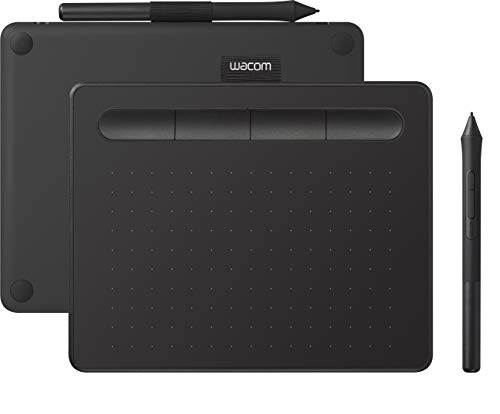
Wacom Intuos CTL-4100/K0-CX Digital Graphics Pen Tablet for
Why We Love It

Wacom Intuos S tavoletta Grafica 2540 lpi (linee per
Why We Love It

Wacom Intuos Medium
Why We Love It

Wacom One Medium, Pen Tablet
Why We Love It

One by Wacom Medium
Why We Love It

Wacom MovinkPad 11, Android 14 Standalone Tablet
Why We Love It

Wacom One 14, Pen Display
Why We Love It

Wacom Intuos Pro Small
Why We Love It

Wacom Cintiq 16 (2025 Edition)
Why We Love It
Quick Pick
10 Best Wacom Drawing Tablet Of 2026
Quick Pick
Wacom Intuos M Black–with Pen, Stylus Battery-Free & Pressure-Sensitive, Compatible with Windows, Mac & Android, Perfect Tablet for Drawing, Graphics or Remote Working | Graphics tablet (PC required), Wacom natural pencil experience and precise control for drawing, painting and editing photos
Wacom Intuos CTL-4100/K0-CX Digital Graphics Pen Tablet for Drawing (Black) Small (7.8-inch x 6.3-inch) | Battery Free Pen with 4096 Pressure | Compatible with Windows, Mac & Android
Wacom Intuos S tavoletta Grafica 2540 lpi (linee per pollice) 152 x 95 mm USB/Bluetooth Nero
Wacom Intuos Medium, the Innovative Tablet Incl. Pro Pen 3, Compact and Lightweight-a Versatile Choice for Illustrators, Designers, and Photo Editors | Graphics tablet (PC required), compact, ultra-thin, pen-on-paper feel for seamless workflow, Japanese technology
Wacom One Medium, Pen Tablet, incl. battery-free Pen with tilt recognition | Drawing Tablet (PC required), slim, lightweight with trusted pen technology for natural drawing, writing and photo editing
One by Wacom Medium, Pen Tablet, incl. battery-free Wacom Pen 2K | Drawing Tablet (PC required) for sketching, drawing and E-learning with an intuitive pen experience and Japanese Technology
Wacom MovinkPad 11, Android 14 Standalone Tablet, incl. Wacom Pro Pen 3 | Drawing Tablet (no PC required), sharp portable display, pen-on-paper feel with anti-glare etched glass, front & back cameras
Wacom One 14, Pen Display, Full HD, incl. battery-free Standard Pen | Drawing Tablet (PC necessary), Pen-on-paper feel with anti-glare etched glass, lightweight FHD with Japanese technology.
Wacom Intuos Pro Small, The Innovative Pen Tablet incl. Wacom Pro Pen 3, Compact and Lightweight - Ideal for Creators on The go or Those with Limited Desk Space, Without compromising on Performance
Wacom Cintiq 16 (2025 Edition) - Compact 2.5K Creative Pen Display with Wacom Pro Pen 3, Anti-Glare Glass, Foldable Stand and USB-C
Buying Guide: Wacom Drawing Tablet
📋 Table of Contents
1What's the difference between a pen display and a pen tablet?
A pen tablet (like Wacom One or Intuos) has no screen—you draw on a surface while looking at your monitor, which takes practice to get used to. A pen display (like Wacom Cintiq) has a built-in screen so you draw directly where you see the image, making it more intuitive but significantly more expensive.
2What size Wacom tablet should I buy?
For beginners or laptop users, a small tablet (around 6x4 inches) offers portability and takes up minimal desk space. If you have a large monitor or do detailed work, a medium to large tablet (10x6 inches or bigger) gives you better hand-to-screen scaling and more room to work comfortably.
3Does the pressure sensitivity level really matter?
Higher pressure levels (8192 or more) give smoother, more natural line variation in digital art, especially for painting and shading. For basic drawing, sketching, or design work, 4096 levels is perfectly adequate and won't noticeably limit your creativity.
4When is it worth spending more on a Wacom tablet?
Upgrade if you're a professional artist, do detailed illustration work, or need features like tilt support and customizable buttons for workflow efficiency. For hobbyists, students, or casual digital designers, an entry-level Wacom like the One or Intuos gives you 90% of the functionality at a fraction of the cost.
5Do I need a drawing tablet if I already have a touchscreen laptop?
A touchscreen and a Wacom tablet serve different purposes—touchscreens are designed for casual input while tablets offer precision, pressure sensitivity, and ergonomic design for serious drawing work. If you're primarily doing digital art or design, a dedicated tablet will give you much better control and comfort than finger-drawing on a touchscreen.
How we choose
Our editors are people who genuinely love testing and writing about products. We compare each product's real-world usability and strengths, then distill what matters most into our own "Why We Love It" points — so you get an honest, at-a-glance sense of what counts before you buy.