10 Best Synology Network Attached Storage Of 2026
Synology Network Attached Storage — Reviews, Recommendations & Updated Buying Guide November 2026

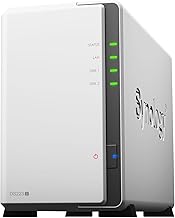
Synology 2-Bay DiskStation DS223j (Diskless)
Why We Love It


Synology DiskStation DS423 Network Attached Storage Drive
Why We Love It

Synology DS425+ Private Cloud Media Server - Stream
Why We Love It

Synology BeeStation Plus 4TB Personal Cloud Storage Device
Why We Love It

Synology BeeStation 4TB Personal Cloud Storage Device
Why We Love It

Synology DS223 Home & Office Backup Hub - Centralize Files
Why We Love It
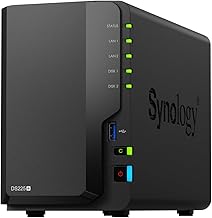
Synology DS225+ Private Cloud Media Server - Stream
Why We Love It

Synology DiskStation DS423+ NASstorage server Ethernet LAN
Why We Love It

Synology DS423 4 Bay Desktop NAS: Efficient Data Storage and
Why We Love It

Synology DS725+ Expandable NAS Storage
Why We Love It
Quick Pick
10 Best Synology Network Attached Storage Of 2026
Quick Pick
Synology 2-Bay DiskStation DS223j (Diskless)
Synology DiskStation DS423 Network Attached Storage Drive (Black)
Synology DS425+ Private Cloud Media Server - Stream, Back Up & Share Files (4-Bay Diskless NAS)
Synology BeeStation Plus 4TB Personal Cloud Storage Device (BST151-4T)
Synology BeeStation 4TB Personal Cloud Storage Device (BST150-4T) Black
Synology DS223 Home & Office Backup Hub - Centralize Files, Protect Data & Monitor Property (2-Bay Diskless NAS)
Synology DS225+ Private Cloud Media Server - Stream, Back Up Photos & Share Files, Intel CPU for Hardware Transcoding (2-Bay Diskless NAS)
Synology DiskStation DS423+ NASstorage server Ethernet LAN Black RTD1619B
Synology DS423 4 Bay Desktop NAS: Efficient Data Storage and Backup | DiskStation Manager | Private cloud, file sharing, backup and multimedia storage for home and business.
Synology DS725+ Expandable NAS Storage - Private Cloud for Home and Small Business (2-Bay Diskless NAS)
Buying Guide: Synology Network Attached Storage
📋 Table of Contents
1How many bays do I actually need for a Synology NAS?
Start with a 2-bay model if you're backing up a few devices or storing family photos, but jump to 4 bays if you run a small business or have large video/media libraries. More bays mean more storage capacity and better redundancy options, but also higher upfront cost and power consumption.
2What's the difference between Synology's J, D, and RS series?
J-series is budget-friendly for home users and small offices, D-series offers better performance for businesses with more demanding workloads, and RS-series is enterprise-grade with advanced features and redundancy. Pick based on how many people will access it simultaneously and what you'll use it for.
3Do I need to check CPU and RAM specs before buying?
Yes—CPU matters if you're using features like video transcoding, surveillance, or running multiple apps; RAM affects how smoothly it handles many users at once. For basic file storage and backups, entry-level specs are fine, but heavy users should aim for at least 4GB RAM and a quad-core processor.
4Should I buy drives separately or get a pre-filled Synology?
Pre-filled models are convenient but usually more expensive per gigabyte; buying the NAS and drives separately lets you choose better drives and save money. If you're not comfortable installing drives yourself, the pre-filled option saves hassle.
5What capacity should I choose—2TB, 4TB, 8TB drives?
Calculate what you actually need (current data × 2-3 for redundancy and growth), then add 20-30% extra for future use. Larger drives cost more upfront but offer better storage per drive slot, so a 4-bay with 8TB drives beats a 4-bay with 2TB drives if your budget allows.
How we choose
Our editors are people who genuinely love testing and writing about products. We compare each product's real-world usability and strengths, then distill what matters most into our own "Why We Love It" points — so you get an honest, at-a-glance sense of what counts before you buy.