10 Best Kamvas Pro 12 Drawing Tablets Of 2026
Kamvas Pro 12 Drawing Tablets — Reviews, Recommendations & Updated Buying Guide November 2026


HUION KAMVAS Pro 16 Graphics Drawing Tablet with Screen
Why We Love It


3-in-1 cable CB05A only for Kamvas 12/13
Why We Love It

HUION KAMVAS Pro 12 Drawing Tablet with Screen
Why We Love It

HUION KAMVAS Pro 13 Graphics Drawing Tablet Pen Display with
Why We Love It

HUION Kamvas Pro 16 V2 Drawing Tablet with Screen 16K Levels
Why We Love It

XPPen Artist12 Pro 11.6" Drawing Tablet with Screen Pen
Why We Love It

XPPen Artist 12 3rd 11.9" Drawing Tablet with Screen
Why We Love It

HUION Kamvas Pro 16 Plus 4K UHD Graphics Drawing Tablet with
Why We Love It
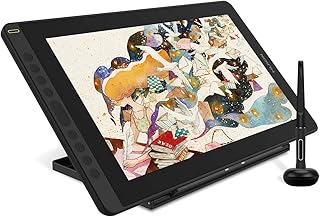
2021 HUION Drawing Tablet KAMVAS 16 Graphic Pen Display with
Why We Love It

HUION KAMVAS 16 (Gen 3) 2.5K QHD Drawing Tablet with Screen
Why We Love It
Quick Pick
10 Best Kamvas Pro 12 Drawing Tablets Of 2026
Quick Pick
HUION KAMVAS Pro 16 Graphics Drawing Tablet with Screen Full-Laminated Graphics Monitor with Battery-Free Stylus Tilt 8192 Pen Pressure 6 Hot Keys Touch Bar with Stand - 15.6 inch for PC/MAC/Linux
3-in-1 cable CB05A only for Kamvas 12/13, Kamvas 16 (2021) Drawing Tablet
HUION KAMVAS Pro 12 Drawing Tablet with Screen, 11.6 inch Full-Laminated Graphics Drawing Monitor, with Battery-Free Pen and Adjustable Stand, Ideal for Work from Home & Remote Learning
HUION KAMVAS Pro 13 Graphics Drawing Tablet Pen Display with Full Lamination Screen Battery-Free Stylus 8192 Pen Pressure - 13.3 inch Monitor with Stand for Linux, Windows and Mac-GT-133
HUION Kamvas Pro 16 V2 Drawing Tablet with Screen 16K Levels PenTech 4.0 Battery-Free Pen, 15.6" Full-Laminated, Smart Touch Bar & 6 Keys Art Tablet Work with Windows, Mac and Linux | 16384 Levels,Battery-free Pencil,Touch Band,Tilt Function,Drawing,Graphic Tablet with Screen
XPPen Artist12 Pro 11.6" Drawing Tablet with Screen Pen Display Full-Laminated Graphics Tablet with Tilt Function Battery-Free Stylus and 8 Shortcut Keys
XPPen Artist 12 3rd 11.9" Drawing Tablet with Screen, 16K, X4 Pen, AG Glass | AG Etched Glass, Dial Wheel, 8 Keys for Digital Art, Animation, Mac, PC, Android, Chromebook, Linux, Designed for Beginners
HUION Kamvas Pro 16 Plus 4K UHD Graphics Drawing Tablet with Full Laminated Screen 145% sRGB Battery-Free Stylus PW517 for PC Mac Android 15.6-inch Pen Display
2021 HUION Drawing Tablet KAMVAS 16 Graphic Pen Display with Screen, Black | 15.6inch Full-Laminated Screen, Battery-Free Stylus Tilt, 10 Press Keys, Full-Featured Type C Cable and an Adjustable Stand
HUION KAMVAS 16 (Gen 3) 2.5K QHD Drawing Tablet with Screen PenTech 4.0 | 15.8 inch, Canvas Glass 2.0, Full Laminated, Anti-Sparkle, 99% sRGB, 16384 Pen Pressure, Dual Dials, Work with Mac/PC/Android
Buying Guide: Kamvas Pro 12 Drawing Tablets
📋 Table of Contents
1What screen size is best for my needs?
For detailed work and portability, 10-13 inches is ideal. Larger screens (16+ inches) suit studio use and multitasking, while smaller ones (8-10 inches) are better for travel and quick sketches. Consider your workspace and mobility when choosing.
2How important is pressure sensitivity for drawing?
Look for at least 8192 levels of pressure sensitivity for smooth shading and fine details. Lower levels (1024-4096) may feel limiting for professional artists, but are fine for casual sketching or beginners learning basics.
3Do I need a built-in display or a passive tablet?
A built-in display offers a natural drawing experience and real-time feedback, but is more expensive and heavier. Passive tablets (without a screen) are cheaper and portable, but require a separate monitor and may feel less intuitive for some users.
4What stylus features should I prioritize?
A stylus with palm rejection, tilt recognition, and a comfortable grip improves accuracy and reduces fatigue. Battery-free models with wireless charging are convenient, but ensure the stylus has a responsive tip for precise line control.
5Are extra buttons and customizable keys worth it?
Customizable buttons can speed up your workflow by assigning shortcuts to common tools or actions. They’re most useful for advanced users, while beginners may find them confusing or unnecessary. Choose based on your skill level and software needs.
How we choose
Our editors are people who genuinely love testing and writing about products. We compare each product's real-world usability and strengths, then distill what matters most into our own "Why We Love It" points — so you get an honest, at-a-glance sense of what counts before you buy.